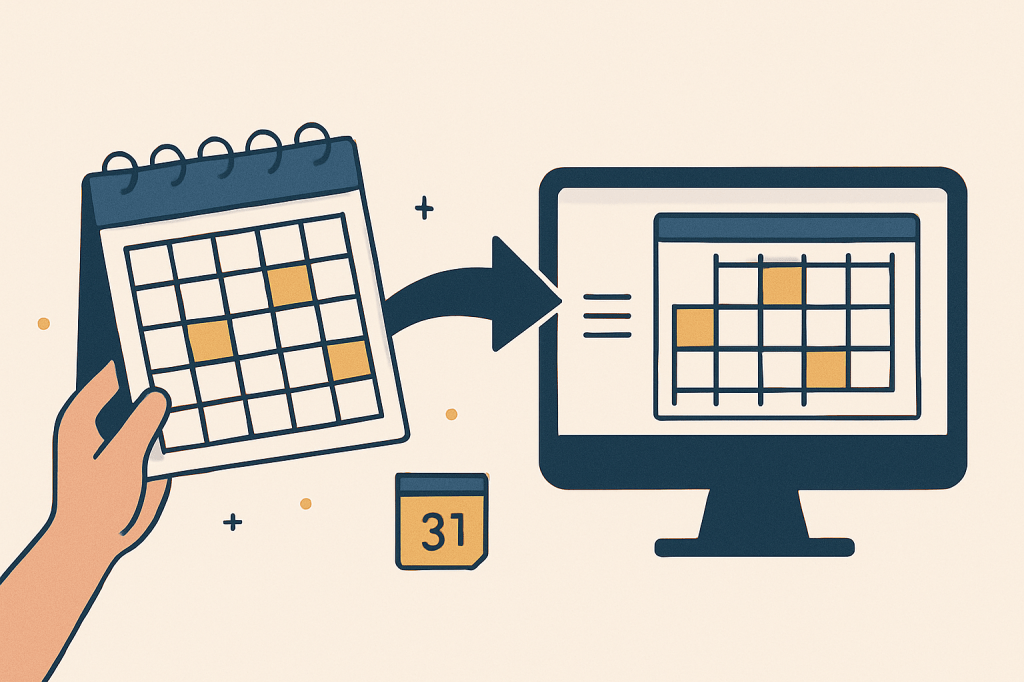
Picture this: You’re at a conference, and someone hands you a beautifully designed paper calendar with dozens of sessions, workshops, and networking events. Or maybe you’re a parent who just received your child’s school activity calendar filled with field trips, sports games, and special events. Traditionally, you’d face the tedious task of manually typing each event into your Google Calendar—a process that could take hours and is prone to errors. Or, worse – you will stick the calendar on the fridge and forget to check it. Happens to me all the time. 😛
But what if I told you that AI can now look at that calendar image and automatically create all those events in your Calendar within minutes? From now on, never miss a single event :). All you need is this system to automate everything.
Here’s what you need to do to digitize your paper/image calendar:
Step 1: Convert the image to text via ChatGPT.
Upload the calendar image in chatGPT and give the prompt similar to “Here’s the June calendar. Put down all the events in June in format Date: event name”. ChatGPT will read and return the results in seconds. I have experienced a decent level of accuracy with image-to-text conversion for this App.
AI technology involved: Optical Character Recognition (OCR) identifies and extracts text content from images. OCR output is interpreted and formatted into a structured list using natural language processing (NLP) capabilities. You can use the same technology for any image-to-text conversion and formatting. Saves you a tonne of time and effort. Work smarter, not harder. Learn about the basic AI jargon here.
Step 2: Convert the data into Sheets via Gemini.
Google Calendar allows you to import events from a Comma Separated Values (CSV) file. Copy and paste the chatGPT output in Gemini and use the following prompt:
For the data here, convert it to the following table format. In the table, you’ll need at least the following columns (and they must be in English):
Subject (Required): The name of the event (e.g., “Summer Fun Crafts”)
Start Date (Required): The date the event begins (e.g., “06/02/2025” or “6/2/2025”)
End Date (Optional, but good for all-day events): The date the event ends (same as the Start Date for single-day events).
All-Day Event (Optional): Enter “TRUE” for all-day events, “FALSE” otherwise.
Description (Optional): Add any notes or details (e.g., “Let Blow Some Bubbles”).
Once the table is generated, export the data to Google Sheets and save it as CSV. This step will convert your data into the Google Calendar format and export it to the sheet.
Step 3: Create a Zapier AI Agent to automatically schedule your events on the calendar.
Go to Zapier, and log in with your Google account. Give limited access to Zapier as you will use this only for calendar updates. Check out how to build a Zapier AI agent here. While creating an AI agent, you will need to set up :
Trigger: Keep this on demand, as you just need it as and when required.
Instructions: Give these steps as instructions :
When a list of calendar events is available in a structured format (like a spreadsheet or CSV :
- Read the list of calendar events in Google Sheets: Find Worksheet.
- Google Sheets: Get Many Spreadsheet Rows (Advanced) – this is an Action in Zapier.
- For each event in the list, create a new event in Google Calendar: Create Detailed Event – this is an Action in Zapier.
- Expected Outcome: All events from the provided list are created in Google Calendar.
In this process, we are using 3 different Apps. The way AI is revolutionizing, in the future – we will be able to do this in fewer clicks.
Are you using AI to increase your productivity? Let us know how. Ready to revolutionize your calendar management? Schedule some time with us and we will set up this system for you in minutes.




 A Beautiful World!