If you have already integrated AI tools as part of your routine, you might already be tired of repeatedly typing the same AI prompts over and over again. What if you could summon them instantly with a simple shortcut? All you need to do is type the shortcut, and it will expand itself to a pre-saved prompt.
With text expansion tools, you can create shortcuts for frequently used words, sentences, or even entire paragraphs—saving time and boosting productivity! The key to increasing productivity lies in reducing repetitive tasks. Develop systems, organize prompts and work smarter!
If you have mastered a prompt to its perfection, this tip can save you a lot of time. You can always just edit a few details and reuse it every time.
Whether you’re a Mac or Windows user, here’s how to set up text shortcuts. You will never type the same prompt twice again.

Why Use Text Shortcuts?
- Save time – say goodbye to tedious, repetitive thinking and typing
- Increase accuracy – say goodbye to typos and rewriting
- Boost productivity & work smarter– say hello to using your perfect prompt every time
How to Create Text Shortcuts on Mac
Mac users can use Text Replacement—a built-in feature that lets you create custom shortcuts.
Set Up Text Shortcuts on Mac in these 5 steps:
- Go to System Settings → Click Keyboard → Select Text Replacements
- Click the “+” button to add a new shortcut.
- Under Replace, type your shortcut (e.g.,
::aitestl). - Under With, type the full text you want to insert (e.g.,
<Your_Prompt>). - Press Add, and you’re done!
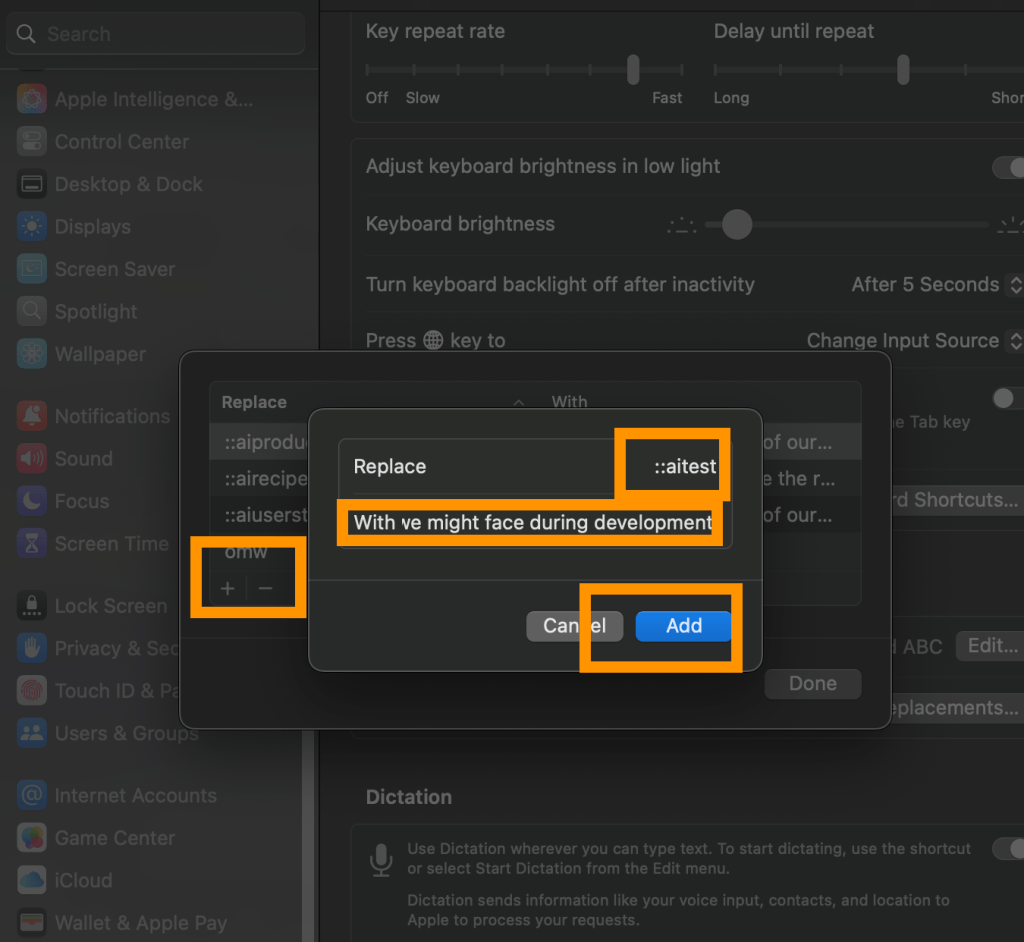
For any of your tools, enter the keyword and the text will appear which should replace the keyword.
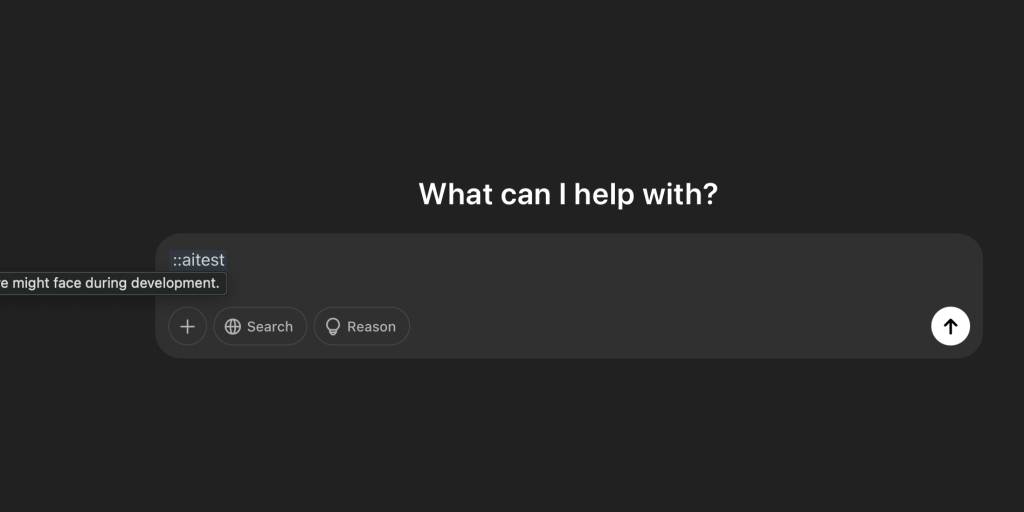
This literally works across all apps.
How to Create Text Shortcuts on Windows in 5 steps
Windows doesn’t have built-in text replacement like Mac, but you can use PowerToys (a free Microsoft utility) for system-wide shortcuts.
- Download PowerToys from Microsoft’s official site.
- Open PowerToys → Go to Keyboard Manager.
- Select Text Expansion and click Add Shortcut.
- Enter a shortcut (e.g.,
;aitest) and set the full text (e.g., <your_prompt>). - Click Save, and now your shortcut works everywhere!
With text shortcuts, you never have to type the same prompt, email, or reply again! Whether you’re a Mac or Windows user, setting up text replacement is a game-changer.
Have you tried these shortcuts yet? Would you like a custom list of text shortcuts for specific tasks?






 A Beautiful World!